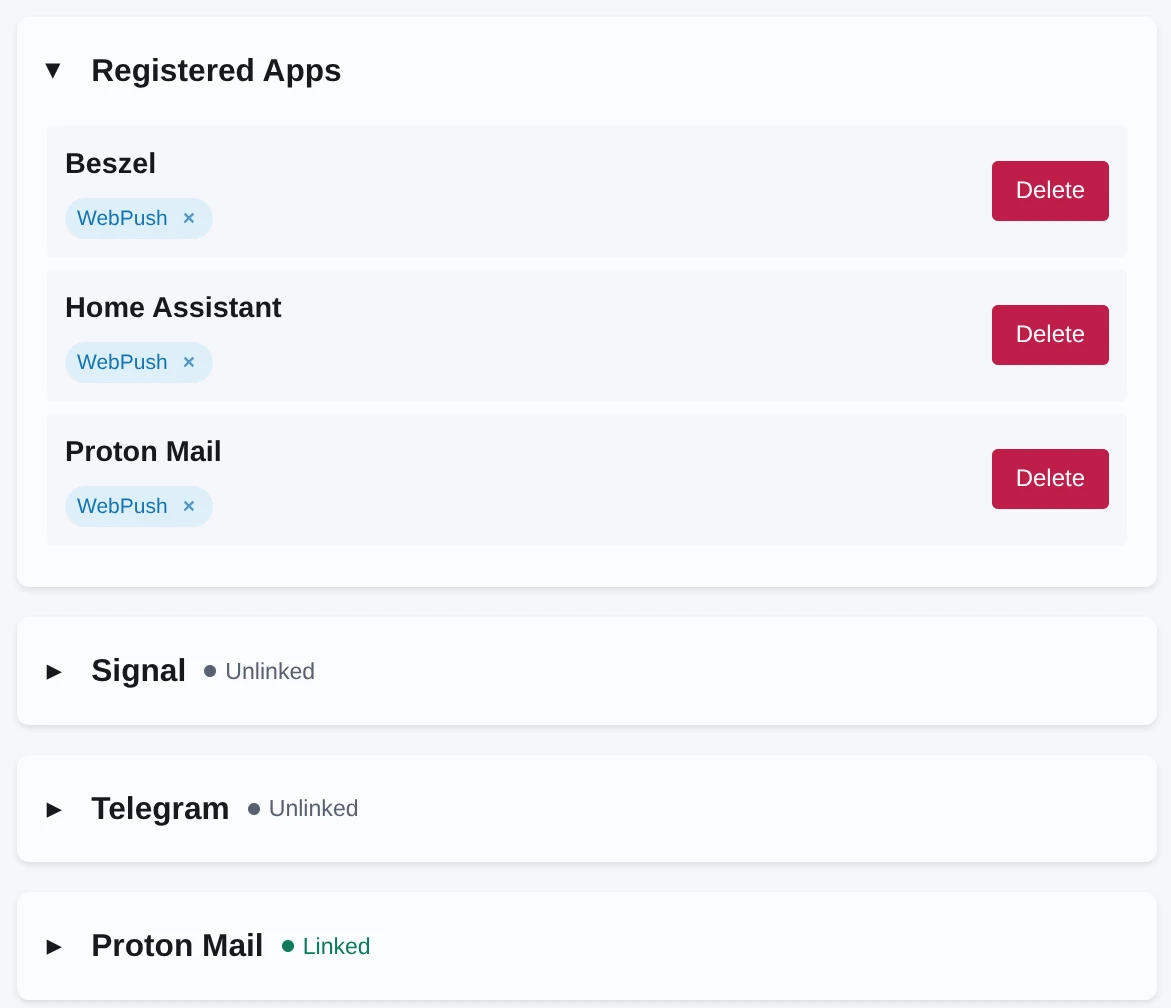
Route notifications to Signal, Telegram, or WebPush via webhooks or Proton Mail monitoring.
Android companion app: [prism-android](https://github.com/lone-cloud/prism-android)
## Setup
### Docker (Recommended)
```bash
curl -L -O https://raw.githubusercontent.com/lone-cloud/prism/master/.env.example
mv .env.example .env
nano .env # Set API_KEY=your-secret-key-here
curl -L -O https://raw.githubusercontent.com/lone-cloud/prism/master/docker-compose.yml
docker compose up -d
```
### Binary (Alternative)
```bash
curl -L -O https://github.com/lone-cloud/prism/releases/latest/download/prism-linux-amd64
chmod +x prism-linux-amd64
mv prism-linux-amd64 prism
curl -L -O https://raw.githubusercontent.com/lone-cloud/prism/master/.env.example
mv .env.example .env
nano .env # Set API_KEY=your-secret-key-here
./prism
```
Prism is now running at .
## Integrations
All integrations are configured through the web UI. Authenticate with your `API_KEY` as the password (username can be anything).
### Signal
Send notifications through Signal Messenger.
**Setup:**
1. Visit and authenticate with your API_KEY
2. Expand the Signal integration card
3. Click "Link Device"
4. Scan the QR code with Signal on your phone:
- Open Signal → Settings → Linked Devices → Link New Device
- Scan the displayed QR code
5. Your device will link automatically
> **Note:** Binary installs require [signal-cli](https://github.com/AsamK/signal-cli/releases) in your PATH. Docker includes it automatically.
### Telegram
Send notifications through a Telegram bot.
**Setup:**
1. Create a bot:
- Message [@BotFather](https://t.me/BotFather) on Telegram
- Send `/newbot` and follow the prompts
- Copy the bot token
2. Get your Chat ID:
- Message [@userinfobot](https://t.me/userinfobot) on Telegram
- Copy your Chat ID from the response
3. Configure in Prism:
- Visit and authenticate with your API_KEY
- Expand the Telegram integration card
- Enter your bot token and chat ID
- Click "Configure"
### Proton Mail
Monitor a Proton Mail account and forward new emails as notifications through Signal or Telegram.
**Setup:**
1. Visit and authenticate with your API_KEY
2. Configure Signal or Telegram first (required for routing)
3. Expand the Proton Mail integration card
4. Enter your Proton Mail credentials:
- Email address
- Password
- 2FA code (if enabled)
5. Click "Link"
New emails appear as notifications from the "Proton Mail" app. Credentials are encrypted (AES-256-GCM) and tokens refresh automatically.
### WebPush
Send notifications directly to your browser.
**Setup:**
1. Visit and authenticate with your API_KEY
2. Allow browser notifications when prompted
3. Apps without Signal or Telegram configured will automatically use WebPush
## API
All API endpoints require authentication with your API key:
```bash
Authorization: Bearer YOUR_API_KEY
```
### ntfy-compatible publish API
Publish notifications to `POST /{appName}`.
`{appName}` is the target app/topic name. Messages are routed to all subscriptions configured for that app (Signal, Telegram, WebPush).
**JSON payload:**
```bash
curl -X POST http://localhost:8080/my-app \
-H "Authorization: Bearer YOUR_API_KEY" \
-H "Content-Type: application/json" \
-d '{"title": "Alert", "message": "Something happened"}'
```
**JSON payload with image:**
```bash
curl -X POST http://localhost:8080/my-app \
-H "Authorization: Bearer YOUR_API_KEY" \
-H "Content-Type: application/json" \
-d '{"title": "Motion Detected", "message": "Front door", "attach": "https://example.com/snapshot.jpg"}'
```
**Plain text payload:**
```bash
curl -X POST http://localhost:8080/my-app \
-H "Authorization: Bearer YOUR_API_KEY" \
-d "Simple message text"
```
### WebPush subscription API
Register and remove WebPush subscriptions for an app.
#### POST /api/v1/webpush/subscriptions
Creates a WebPush subscription.
Required fields:
- `appName`
- `pushEndpoint`
Optional encrypted payload fields (must be provided together):
- `p256dh`
- `auth`
- `vapidPrivateKey`
```bash
curl -X POST http://localhost:8080/api/v1/webpush/subscriptions \
-H "Authorization: Bearer YOUR_API_KEY" \
-H "Content-Type: application/json" \
-d '{
"appName": "my-app",
"pushEndpoint": "https://example.push.service/send/abc123",
"p256dh": "BASE64URL_P256DH",
"auth": "BASE64URL_AUTH",
"vapidPrivateKey": "BASE64URL_VAPID_PRIVATE_KEY"
}'
```
Minimal registration (without encrypted payload fields):
```bash
curl -X POST http://localhost:8080/api/v1/webpush/subscriptions \
-H "Authorization: Bearer YOUR_API_KEY" \
-H "Content-Type: application/json" \
-d '{
"appName": "my-app",
"pushEndpoint": "http://localhost:9001/mock-push"
}'
```
#### DELETE /api/v1/webpush/subscriptions/{subscriptionId}
Removes a WebPush subscription by ID.
```bash
curl -X DELETE http://localhost:8080/api/v1/webpush/subscriptions/SUBSCRIPTION_ID \
-H "Authorization: Bearer YOUR_API_KEY"
```
## Real-World Examples
### Home Assistant
Add to `configuration.yaml`:
```yaml
notify:
- platform: rest
name: Prism
resource: "http:///Home Assistant"
method: POST_JSON
headers:
Authorization: !secret prism_api_key
data_template:
title: "{{ title }}"
message: "{{ message }}"
image: "{{ data.image | default('') }}"
```
Add to `secrets.yaml`:
```bash
prism_api_key: "Bearer YOUR_API_KEY_HERE"
```
Then use the `notify.prism` action in automations.
**Sending an image from a camera snapshot:**
```yaml
action: notify.prism
data:
title: "Motion Detected"
message: "Front door camera triggered"
data:
image: "https://example.com/snapshot.jpg"
```
### Beszel
In [Beszel](https://beszel.dev)'s **Settings → Notifications**, add:
```
ntfy://:YOUR_API_KEY@:/Beszel?disableTLS=yes
```
`disableTLS=yes` is only needed for local HTTP. The app name (`Beszel`) can be anything.
## Monitoring
### Health Endpoints
#### GET /health
Public. Returns `200 OK` when running.
```bash
curl http://localhost:8080/health
```
#### GET /api/v1/health
Authenticated. Returns uptime and integration status:
```bash
curl http://localhost:8080/api/v1/health \
-H "Authorization: Bearer YOUR_API_KEY"
```
```json
{
"version": "1.2.0",
"uptime": "2h15m",
"signal": {"linked": true, "account": "+1234567890"},
"telegram": {"linked": true, "account": "123456789"},
"proton": {"linked": true, "account": "user@proton.me"}
}
```